How to Read Google Sheet Data in a Flutter App
A practical guide to building dynamic, easily-updatable Flutter apps using Google Sheets as a lightweight CMS.

Gaurav Lakhani
—
 Published: December 4, 2025
—
Updated: January 20, 2026—

18 min read
How to Read Google Sheet Data in a Flutter App: The Smart Way to Manage Dynamic Content
Here's a question that comes up in almost every client meeting: "How can our team update app content without bothering the developers every time?"
It's a fair question. Your marketing team wants to change promotional banners. Your product team needs to update pricing. Your content team is constantly refining product descriptions. And every single change means filing a ticket, waiting for the next sprint, going through development, testing, and deployment, just to change a few words or numbers.
There's a better way, and it's probably already sitting in your company's tech stack: Google Sheets.
I know what you're thinking. Google Sheets? As a database for a mobile app? Sounds like a hack, right?
Here's the reality: companies from bootstrapped startups to Fortune 500 enterprises use Google Sheets as a content management system for their Flutter apps. Not because they're cutting corners, but because for many use cases, it's genuinely the smartest architectural choice you can make.
Let me show you why this works, when it makes sense, and how to implement it the right way.
Why Google Sheets Actually Makes Perfect Sense
The core problem most businesses face isn't technical; it's operational. You need a way for non-technical team members to manage app content independently, quickly, and without breaking things.
Traditional solutions mean building admin panels, setting up databases, implementing CRUD APIs, adding authentication, and training your team on yet another tool. That's weeks of development time and ongoing maintenance overhead.
Google Sheets solves this differently. Your team already knows how to use it. There's zero learning curve. They can collaborate in real-time, track changes with version history, leave comments for approval workflows, and use formulas for complex calculations,all built-in features they already understand.
The Business Case
Let me give you real scenarios where this approach delivers serious value:
Scenario 1: E-commerce Product Catalogs
A fashion retailer we worked with manages 500+ products with daily inventory and pricing changes. Their merchandising team updates Google Sheets every morning with new arrivals, stock levels, and promotional pricing. The Flutter app pulls this data automatically. Total implementation time: three days. Previous solution (custom admin panel): six weeks of development plus ongoing maintenance.
Scenario 2: Multi-Language Content Management
A travel app supporting eight languages needed non-technical translators to manage localized content. Google Sheets gave them a simple interface where each column represented a language, each row a translatable string. Translators could work simultaneously, track progress, and flag issues,all without touching code or learning specialized software.
Scenario 3: Feature Flags and Configuration
A fintech app needed product managers to control feature rollouts without deployments. Google Sheets became their feature flag dashboard. Toggle a cell from "OFF" to "ON", and the feature activates for users within minutes. No code changes. No app store review cycles.
Scenario 4: Event Schedules and Dynamic Content
Conference apps, restaurant menus, class schedules, and store locations are examples of content that undergoes frequent changes without requiring user interaction. Event coordinators update Sheets in real time. Attendees see current information instantly.
The pattern? Content that changes frequently, managed by non-developers, with moderate scale requirements. That's where Google Sheets excels.
When This Approach Doesn't Make Sense
Let's be clear about limitations. Google Sheets isn't right for:
-
High-volume transactional data: If you're processing thousands of reads per minute, you'll hit API limits fast.
-
User-generated content at scale: Comments, posts, and user uploads,this needs proper database infrastructure.
-
Complex relational data: Multi-table joins, foreign key relationships, and complex queries belong in real databases.
-
Mission-critical systems with strict SLA requirements: While Google's infrastructure is reliable, Sheets doesn't offer the same uptime guarantees as enterprise databases.
If your use case fits these categories, consider Firebase, PostgreSQL, MongoDB, or other dedicated database solutions.
But for content management, configuration, and moderate-scale data that non-technical teams need to control,Google Sheets is hard to beat on speed, cost, and usability.
Understanding the Two Integration Approaches
There are two main ways to connect Flutter apps to Google Sheets. Understanding the difference helps you choose the right architecture.
Approach 1: Direct Google Sheets API Integration
Your Flutter app authenticates with Google's official Sheets API and reads data directly. This is the production-grade approach we recommend.
What you get:
-
Full control over reading, writing, updating, and formatting data
-
Official Google support and comprehensive documentation
-
Reliable, tested infrastructure
-
Fine-grained security controls
Trade-offs:
-
Initial setup requires Google Cloud Platform configuration
-
Managing authentication credentials properly
-
Working within API rate limits (100 requests per 100 seconds)
Best for: Production apps, teams comfortable with API integrations, projects requiring robust, long-term solutions.
Approach 2: Google Apps Script as Custom API
You create a lightweight script that exposes your Sheet as a custom REST endpoint. Your Flutter app calls this endpoint like any standard API.
What you get:
-
Simpler authentication (can be public or use basic tokens)
-
Ability to add custom business logic in JavaScript
-
No Google Cloud setup required
Trade-offs:
-
Performance limitations (Apps Script has execution time limits)
-
Additional code to maintain (the script itself)
-
Less robust for complex use cases
Best for: Simple read-only scenarios, teams wanting minimal Google Cloud interaction, prototypes and MVPs.
For this guide, we're focusing on Approach 1,the direct API integration. It's more reliable, scales better, and sets you up for long-term success.
What You Need: Prerequisites Setup
Before connecting your Flutter app, you need to set up the Google side. This takes about 15 minutes but is crucial for security and functionality.
Step 1: Prepare Your Google Sheet
Structure matters. How you organise your Sheet affects how easy it is to work with in your app.
Best practices:
-
Use the first row for column headers: Makes your data self-documenting and easier to parse
-
Keep column structure consistent: Don't have some rows with 5 columns and others with 8
-
One data type per column: If it's a number column, keep it numbers throughout
-
Avoid merged cells: The API doesn't handle these well
-
Separate different data types into different tabs: Products on one sheet, categories on another
Example: Product Catalog Structure
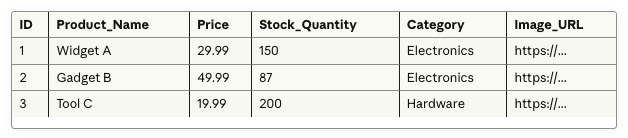
Clean, predictable structure makes everything downstream easier.
Save your Spreadsheet ID: Look at your Sheet's URL:
https://docs.google.com/spreadsheets/d/1A2B3C4D5E6F7G8H9I0J/edit#gid=0
The long string between /d/ and /edit is your Spreadsheet ID. You'll need it later.
Step 2: Google Cloud Platform Setup
This is where many teams get intimidated, but it's straightforward when you break it down.
Why do you need Google Cloud? To access Google Sheets programmatically (from your app), you need API credentials. Google Cloud Platform is where you create and manage those credentials.
Step-by-step:
-
Create a Google Cloud Project
-
Go to console.cloud.google.com
-
Click "New Project"
-
Name it descriptively (e.g., "MyApp-Sheets-Integration")
-
Click "Create"
-
Enable Required APIs
-
Navigate to "APIs & Services" > "Library"
-
Search for and enable:
-
Google Sheets API (to read/write Sheet data)
-
Google Drive API (required for service account access)
-
Create Service Account Credentials
Think of a service account as a robot user that can access your resources. Instead of requiring human login, your app authenticates as this service account. -
Go to "APIs & Services" > "Credentials"
-
Click "Create Credentials" > "Service account"
-
Give it a name like "flutter-app-sheets-reader"
-
Grant it "Editor" role (or customize permissions for tighter security)
-
Click "Create and Continue" > "Done"
-
Generate a JSON Key
This is your authentication credential,treat it like a password. -
Click on your newly created service account
-
Go to "Keys" tab
-
Click "Add Key" > "Create new key"
-
Choose "JSON" format
-
Click "Create"
-
A JSON file downloads. This file lets your app access Google Sheets. Keep it secure.
Security note: Never commit this JSON file to git repositories or share it publicly. We'll cover safe handling shortly.
Step 3: Grant Sheet Access to Your Service Account
Your service account now has API permissions, but it doesn't have access to your specific Sheet yet. You need to share the Sheet with it, just like sharing with a colleague.
How to share:
-
Open your Google Sheet
-
Click "Share" (top right corner)
-
Paste the service account email (found in the JSON file under client_email)
-
It looks like: flutter-app-sheets-reader@your-project.iam.gserviceaccount.com
-
Set permission level:
-
Viewer: If your app only reads data
-
Editor: If your app will write or update data
-
Uncheck "Notify people" (service accounts don't receive emails)
-
Click "Share"
Done. Your service account can now access this Sheet through the API.
Connecting Flutter to Google Sheets
Now let's implement this in your Flutter app. We'll break it into digestible pieces.
Required Flutter Packages
Please open your pubspec.yaml file and add the following dependencies:
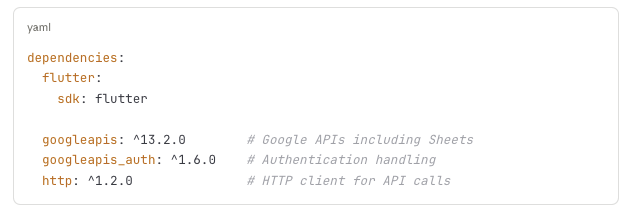
To install them, run the command flutter pub get.
What each package does:
-
Google APIs: Provides access to the Google Sheets API with a type-safe Dart code.
-
googleapis_auth: Handles OAuth authentication so you don't have to
-
http: Required for making authenticated network requests
Secure Credential Storage
Remember that JSON key file? You need to include it in your Flutter app safely.
For development and testing:
-
Create an assets/ folder in your project
-
Place your credentials.json file there
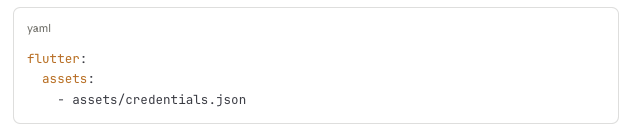
-
Update pubspec.yaml to include it:
-
Please add it to .gitignore to prevent it from being committed.

For production apps: Use environment variables or secure cloud storage services. Never bundle credentials directly in release builds that go to app stores.
The Core Implementation
Here's what the integration looks like at a high level. Don't worry about every technical detail, focus on understanding the flow.
Step 1: Initialize the Connection
Your app loads the credentials, authenticates with Google, and establishes a connection to the Sheets API. This happens once when your app starts or when you first need Sheet data.
Step 2: Request Data
You specify which Sheet (by name) and which range of cells you want (like "A1:D100" or "entire Products tab"). The API returns the data as rows and columns.
Step 3: Parse the Data
Raw data comes as nested lists (rows containing cells). You transform this into structured objects your app can work with,like a Product object with name, price, stock, etc.
Step 4: Display in UI
Use Flutter widgets to show the data,lists, grids, cards, whatever fits your design.
Step 5: Handle Updates
When data changes in the Sheet, you can either:
-
Refresh manually (user pulls to refresh)
-
Refresh automatically (check every few minutes)
-
Get notified via webhooks (advanced setup)
Reading Data: The Basics
The Google Sheets API uses A1 notation to specify cell ranges:
-
Sheet1!A1:B10 = Cells A1 through B10 on Sheet1
-
Products!A:Z = All columns A through Z on the Products tab
-
A1 = Just cell A1
-
Sheet1 = Entire Sheet1
Common reading patterns:
Read entire sheet including headers:

Read specific range:

Read single cell:

Handling Multiple Sheets/Tabs
If your Google Sheets document has multiple tabs, reference them by name:
-
Products tab: "Products!A:Z"
-
Categories tab: "Categories!A:Z"
-
Settings tab: "Settings!A:Z"
Your app can read from multiple tabs in a single document, organizing related data logically.
Displaying Data in Your Flutter App
Once you've fetched data from Google Sheets, you need to present it in your UI. The pattern follows standard Flutter development.
Transform Raw Data into Objects
Google Sheets returns data as simple lists, but your app works better with structured objects. For example, raw data might look like:
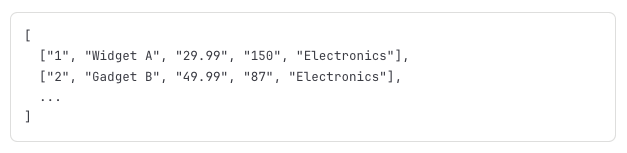
You transform this into proper Product objects:
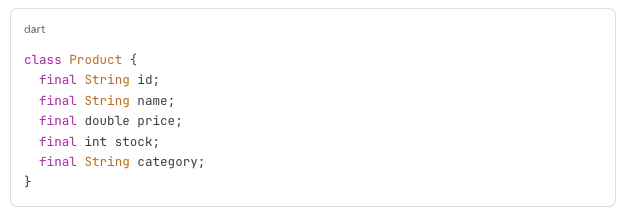
This makes your code cleaner and catches errors early (like if someone puts text in a number field).
Building the UI
Basic display pattern:
-
Show a loading indicator while fetching data
-
Display the data in an appropriate widget (ListView, GridView, DataTable)
-
Handle errors gracefully (show error message, provide retry button)
-
Add refresh capability (pull-to-refresh or manual button)
Example user experience:
-
User opens "Products" screen
-
App shows spinner while loading from Google Sheets
-
Products appear in a scrollable list with images, names, prices
-
User pulls down to refresh and get latest data
-
If network fails, app shows friendly error message with retry option
Making Content Feel Dynamic
The power of this approach shines when content updates feel seamless:
Option 1: Manual refresh Add a refresh button or pull-to-refresh gesture. Users explicitly request new data when they want it. Simple and gives users control.
Option 2: Automatic periodic refresh Check for updates every 5-10 minutes in the background. Users always see relatively fresh data without thinking about it. Good for content that changes frequently.
Option 3: Smart caching Show cached data immediately (fast, works offline), then fetch fresh data in the background and update seamlessly. Best user experience but slightly more complex to implement.
For most apps, Option 1 or 2 works perfectly.
Common Challenges and How to Handle Them
After implementing dozens of Google Sheets integrations, certain issues come up repeatedly. Here's what to watch for and how to handle them.
Challenge 1: API Rate Limits
Google Sheets API allows 100 requests per 100 seconds per user. For most apps, this is plenty. But if you're polling frequently or have many users simultaneously, you might hit limits.
Solutions:
-
Cache data locally instead of fetching on every screen view
-
Fetch data once when app opens, then periodically (not constantly)
-
If you hit a rate limit, wait before retrying (don't hammer the API)
Rule of thumb: If you're fetching the same data multiple times per minute, you're probably doing it wrong. Fetch once, cache locally, refresh periodically.
Challenge 2: Data Consistency
Users can edit Google Sheets while your app is reading from them. Columns might get deleted, data types might change, new rows might appear.
Solutions:
-
Always validate data types (don't assume a number field contains a number)
-
Provide default values for missing data
-
Test with messy, incomplete data,not just perfect samples
-
Consider adding data validation rules in Google Sheets itself
Pro tip: Lock critical columns in Google Sheets (Format > Protect Range) so only authorized users can modify structure.
Challenge 3: Security and Access Control
If your Sheet contains sensitive data, think carefully about access:
Questions to ask:
-
Who can view the Sheet? (Keep it private, shared only with your service account)
-
What happens if someone gets your credentials? (They could read/write your Sheet)
-
Do different users need different data? (You might need server-side filtering, not direct Sheet access)
Best practices:
-
Never put user passwords, payment info, or PII in Google Sheets
-
For user-specific data, use proper authentication and server-side access control
-
Rotate service account credentials periodically
-
Use least-privilege permissions (Viewer if you only read, not Editor)
Challenge 4: Offline Experience
Apps should work gracefully when the network is unavailable. If your app depends entirely on real-time Sheet data, it breaks offline.
Solutions:
-
Cache fetched data locally
-
Show cached data first, then refresh in the background.
-
Display appropriate offline indicators
-
Decide what functionality works offline vs. requires connection
Users expect mobile apps to handle network issues smoothly.
Challenge 5: Performance with Large Datasets
Google Sheets works great for hundreds or even low thousands of rows. If you're approaching 10,000+ rows or complex formulas, performance degrades.
Solutions:
-
Paginate data (fetch 100 rows at a time, not everything)
-
Move complex calculations to your app or server
-
Consider if Google Sheets is still the right solution at this scale
-
Split large Sheets into multiple smaller ones by category/date
Scale rule: If your Sheet has more than 5,000 rows or you're fetching data more than once per minute, evaluate whether you need a real database.
Extending Functionality: What Else You Can Do
Reading data is just the start. Here are powerful patterns that take this further.
Writing Data Back to Sheets
Your app can also write, update, or delete data. Use cases:
-
Form submissions (customer inquiries, feedback)
-
Analytics or logging (track user actions)
-
Two-way sync (mobile field staff updating inventory)
The API supports full CRUD operations. Just change your service account permissions from Viewer to Editor.
Caution: Writing from a mobile app means anyone with your app can potentially write to your Sheet. Implement validation and consider rate limiting to prevent abuse.
Using Google Apps Script for Business Logic
Apps Script (Google's JavaScript environment) lets you add custom logic to Sheets:
-
Data validation on write
-
Automatic notifications when data changes
-
Complex calculations or formatting
-
Scheduled jobs (daily reports, cleanup)
Your Flutter app triggers this logic by writing to specific cells or calling Apps Script web apps.
Example use case: User submits a form in your app. Data writes to Sheet. Apps Script validates it, sends confirmation email, and updates a dashboard,all automatically.
Multi-Sheet Complex Data Models
For sophisticated apps, use multiple tabs as a lightweight relational structure:
-
Products sheet: Product details
-
Categories sheet: Category definitions
-
Inventory sheet: Current stock levels
-
Config sheet: App settings and feature flags
Your app fetches from multiple sheets and combines data. Not as powerful as SQL joins, but surprisingly effective for moderate complexity.
Feature Flags and A/B Testing
Google Sheets makes an excellent feature flag dashboard:
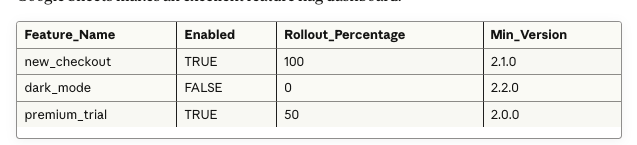
Your app reads this on launch. Product managers control rollouts without deployments or app store reviews.
Dynamic Localization
Manage translations across multiple languages: Translators work directly in Sheets. Your app fetches the appropriate language column based on user locale.

Making the Decision: Is This Right for Your App?
Let's recap when Google Sheets integration makes sense and when it doesn't.
Choose Google Sheets Integration When:
- Non-technical teams need content control – Marketing, product, or operations teams manage app content \
- Content changes frequently – Daily or weekly updates to pricing, products, schedules, or text
- You're building an MVP or prototype – Speed to market matters more than perfect infrastructure
- Budget is constrained – Free solution vs. paid database and admin panel development
- Data volume is moderate – Hundreds to low thousands of records
- Collaborative workflows matter – Multiple stakeholders review/approve content
- You need quick time-to-market – 3-day implementation vs. 6-week custom solution
Choose Alternative Solutions When:
- High transaction volume – Thousands of reads/writes per minute
- User-generated content at scale – Comments, posts, user uploads
- Complex relational data – Multi-table joins, referential integrity, complex queries
- Real-time requirements – Sub-second latency, live collaboration features
- Sensitive user data – Payment information, health records, personal identification
- Mission-critical systems – Can't tolerate any downtime or API limits
The honest assessment: For 60-70% of mobile app content management needs, Google Sheets is actually the smarter choice. The remaining 30-40% genuinely need traditional databases. Don't over-engineer when simple works.
Conclusion: The Right Tool for the Job
After years of building Flutter apps across different industries and scales, here's what I've learned: the best architecture is the one that solves your actual problem, not the one that looks best in a technical diagram.
Google Sheets as a data source feels unconventional. It's not what you'd learn in a computer science course. Traditional developers sometimes dismiss it as "not a real database." But here's what matters: does it solve your business problem effectively?
For content management, dynamic configuration, and moderate-scale data that non-technical teams need to control,Google Sheets does exactly that. It does it faster, cheaper, and with less complexity than building custom admin panels and managing database infrastructure.
The Flutter integration is straightforward. The learning curve is minimal. The operational benefits are immediate. Your marketing team updates pricing in Sheets at 9 AM. Your users see new prices in the app at 9:01 AM. No tickets, no sprints, no deployments.
That's the promise of dynamic content management done right, empowering your team to move at business speed, not engineering sprint speed.
The key is knowing when to use this approach and when to graduate to more robust infrastructure. Start with Google Sheets for your MVP. Prove your product works. Validate your market. Then, if you hit scale limits or complexity that Sheets can't handle, migrate to a dedicated database. But you might be surprised how far this approach takes you.
Remember: Software architecture is about tradeoffs. Simple, maintainable solutions that ship quickly often beat complex, "proper" solutions that take months. Google Sheets gives you the former. Use it wisely, and it'll accelerate your product development significantly.
Are you ready to Build Dynamic Flutter Apps?
At VoxturrLabs, we have architected content management solutions for dozens of Flutter apps, from straightforward Google Sheets integrations to sophisticated multi-database systems. If you want a production-ready build with performance, security, and a clean handover, our Flutter app development services are a great place to start. We are your strategic technology partners who care about solving real business problems, not just writing codes.


Gaurav Lakhani is the founder and CEO of Voxturrlabs. With a proven track record of conceptualizing and architecting 100+ user-centric and scalable solutions for startups and enterprises, he brings a deep understanding of both technical and user experience aspects. Gaurav's ability to build enterprise-grade technology solutions has garnered the trust of over 30 Fortune 500 companies, including Siemens, 3M, P&G, and Hershey's. Gaurav is an early adopter of new technology, a passionate technology enthusiast, and an investor in AI and IoT startups.

Ready for a Next-Level of Enterprise Growth?
Let's discuss your requirements
You May Also Like

Flutter App Development
Why Flutter is the Go-To Choice for Start-ups
Discover why Flutter is the go-to framework for startups — cost-efficient, scalable, and high-performance for building cross-platform mobile apps.
6 min read

Flutter App Development
Why Startups Must Choose Flutter for App Development
How Flutter Reduces Development Costs, Accelerates Time to Market, and Delivers Near-Native Performance for Modern Startups
8 min read
Flutter App Development
Best Backend for Flutter: Which Cloud Services Actually Work in 2026?
Firebase vs Supabase vs AWS Amplify: A practical guide to choosing the right backend for your Flutter app without the hype or surprises.
9 min read

Flutter App Development
5 Flutter App Development Mistakes- What to Avoid and Why?
As a developer, you know that building cross-platform apps with Flutter can be incredibly powerful and efficient to bring your ideas to life. With its ease of use, speed of development, and seamless integration with native platforms, Flutter app developme
2 min read

Flutter App Development
Top 5 Flutter UI Libraries for 2026: Build Better Apps, Faster
Your Flutter UI Toolkit Just Got a Major Upgrade
9 min read

Flutter App Development
Can Flutter Build Enterprise-Grade Desktop Applications? The 2025 Reality Check
An honest 2026 reality check on when Flutter desktop actually works for enterprise apps, where it struggles, and how CTOs should decide.
25 min read
Flutter App Development
Why Flutter Web App Development?
One codebase for mobile and web sounds perfect. But Flutter Web isn't right for every project. Here's when it works, when it doesn't, and how to choose wisely.
10 min read
Flutter App Development
Flutter vs Traditional Enterprise App Development [2025]
Flutter vs native for enterprise apps: cost, speed, performance, UI, integrations, and maintenance. A practical guide for CTOs choosing the right approach.
7 min read